How do you crop PDF pages without turning a simple file job into extra rework? The safest way through the task is to decide what the finished file needs to do, line up the checks that matter before export, and only then run the operation.
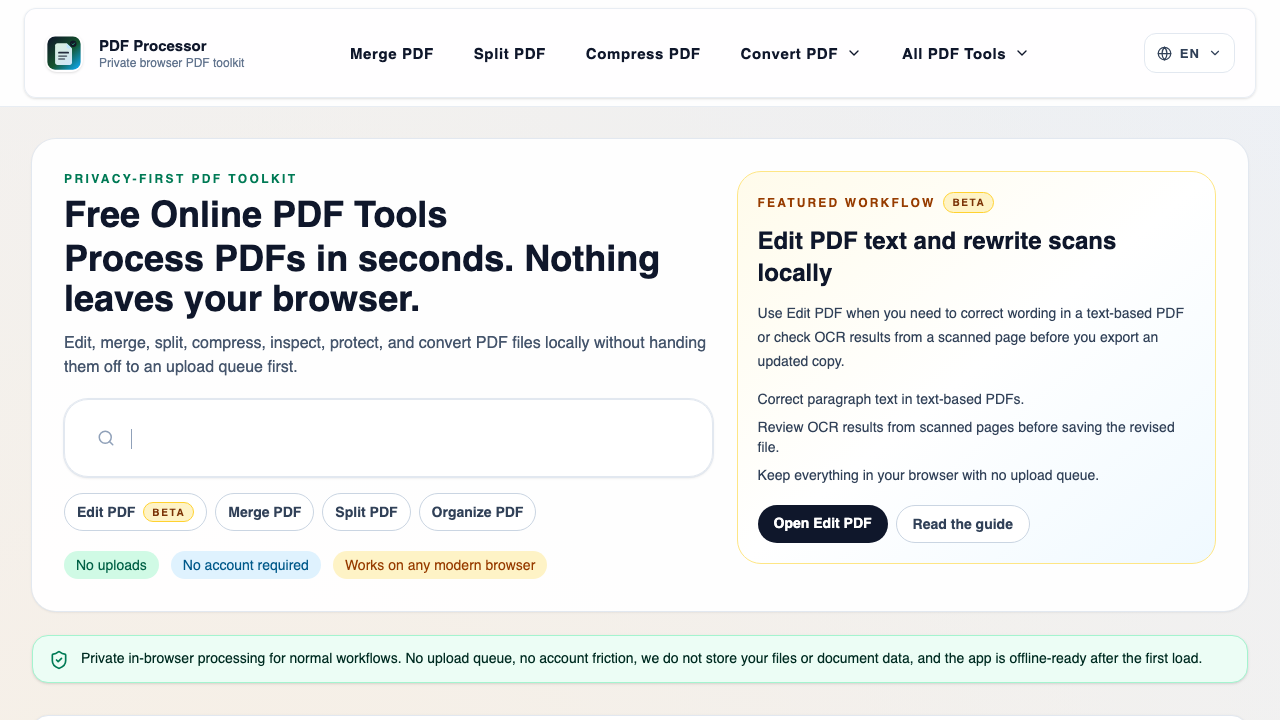
In the Dayfiles stack, the safest starting point is PDF Toolkit before opening the live route at PDF Dayfiles. That keeps the task grounded in the broader packet workflow instead of treating it like a disconnected one-click trick.
When does crop PDF pages make sense?
Crop PDF Pages is usually the right move when the next person only needs clean margins and visible content area. Common situations include:
- trim scan borders before submission
- remove extra whitespace from presentation handouts
- tighten page framing for cleaner print output
The shared pattern across those jobs is that the file already matters. It is close to a portal upload, a client handoff, an internal approval round, or a packet archive. That is why the checks around the operation matter as much as the operation itself.
What should be settled before the crop PDF pages run?
Before the file is loaded, decide the conditions for a good export:
- know whether the crop should apply to all pages or a selected range
- check whether important footer text sits near the edge
- decide whether the packet will be printed after cropping
That short preflight prevents the most common mistake in browser tools: using the right feature on the wrong file, with the wrong destination in mind.
A safer crop PDF pages sequence
- Open the crop route from PDF Toolkit.
- Load the file and inspect the pages that need cleaner framing.
- Apply the crop to the intended range only.
- Export the adjusted file and review pages with seals, footers, or page numbers.
- Print-preview or zoom the file once if the final destination is especially strict.
This sequence keeps the task specific. It avoids repeated exports, vague versioning, and the temptation to treat the first usable output as the finished delivery copy.
Failure points that matter in a crop PDF pages job
Most rework comes from a few predictable failure modes:
- cropping away footer details
- applying one crop box to pages with different layouts
- fixing whitespace but harming readability
The fix is not more feature exploration. The fix is slowing down at the exact moment when the operator would otherwise assume the file is already good enough.
Release checks after the crop PDF pages step
Use this quick release check:
- The content area is tighter without losing useful text.
- Footers, signatures, or stamps remain visible.
- The cropped file still looks balanced in print or review mode.
If the destination is sensitive, time-limited, or tied to another person’s review queue, this check should happen immediately after export while the task context is still fresh.
What the next reviewer should see after crop PDF pages
The next reviewer should receive a file that answers three questions immediately: what changed, whether the file is ready, and what still belongs to the source archive. That is especially important for crop PDF pages because the operation often changes how the file behaves without changing the underlying subject matter.
If the file lands in a shared folder with no naming discipline, another person may not know whether they are opening the source version, the in-progress copy, or the final delivery output. Clean file names and a short handoff note can prevent that confusion without adding another heavy process layer.
When to pause instead of shipping the crop PDF pages output
Pause if the file still needs content edits, if there is disagreement about the approved source, or if the destination requires a different output format than the one you are preparing. The fastest way to create avoidable rework is to use crop PDF pages as a substitute for clarifying the actual delivery requirement.
Where crop PDF pages sits in a broader file handoff
This task rarely lives alone. The crop PDF pages step usually sits between source cleanup and a final review or delivery pass. Dayfiles works best when this route stays connected to the surrounding handoff logic instead of becoming an isolated click.
That broader logic stays the same even when the document changes: keep the approved source clear, run the operation once with intent, then review the output as if you were the recipient. When teams skip that last step, the tool may still work perfectly while the handoff fails anyway.
Next Dayfiles guides after crop PDF pages
- rotate pdf without upload
- page numbers without upload
- PDF Toolkit Checklist for Reliable Document Delivery
Before you send the crop PDF pages result
Treat the exported file as one step in a controlled handoff. Store the output with a readable name, keep the source version available if later changes are likely, and only move to the next channel when the file behaves the way the recipient expects.
The small discipline at the end of the workflow is what gives the whole task its value. The feature click is quick. The trustworthy handoff is the part worth protecting.
For this kind of PDF work, originality comes from the operator knowing exactly what the recipient will notice first. That is why the best version of the workflow is not just “how to run the tool.” It is how to produce an output that another person can trust immediately.